
A 500 Internal Server Error tells you that the server received the request but could not complete it because of an internal failure. The code does not specify what exactly broke, so the same page with the number 500 can hide an error in a script, an invalid directive in a configuration file or the aftermath of a failed update.
For a visitor it is a temporary inconvenience, and for a site owner it means lost enquiries and orders until the cause is found. This article explains what server error 500 means, where to look for the real cause of the failure and how to act so that the error does not return after the next changes to the website.
What the 500 Internal Server Error means
HTTP status code 500 (500 status code) belongs to the HTTP 5xx group of server errors. It means the server encountered an unexpected condition that prevented it from fulfilling the request. The code itself does not specify in which component the problem arose: the web server, the application, its dependencies or the configuration.
HTTP 500 is a general server error code. Under certain circumstances the server may return more specific responses: 503 Service Unavailable when the service is temporarily unavailable, 502 Bad Gateway when a gateway or proxy received an invalid response from the next server, or 504 Gateway Timeout when the response from it did not arrive in time. At the same time, the actual code depends on the architecture and settings of the system: an overload or a PHP failure can also be accompanied by a 500 response.
The message in the browser usually does not reveal the specific cause. The details are found in the logs of the web server, the application, PHP and related services, provided that logging of the relevant events is configured. Code 500 itself only shows that the request could not be fulfilled; diagnostics require additional data.
How 500 differs from 404, 502 and 503 errors
For a visitor the result may look similar: the page they wanted did not open. The codes, however, report different situations. 404 Not Found means the server did not find a representation of the requested resource or is not willing to disclose that it exists. 403 Forbidden indicates a refusal to fulfil the request. By themselves these responses say nothing about whether all server components are working or not.
Code 500 means an unexpected condition prevented the request from being fulfilled, and it does not prove that the address is correct or that the page necessarily exists. Code 502 Bad Gateway means a gateway or proxy received an invalid response from the server it contacted. Code 503 Service Unavailable indicates a temporary inability to handle the request, for instance because of maintenance or overload.
The code determines the direction of the check. With 404, you find out whether the resource exists and whether the routes are configured correctly; with 502, you check how the proxy interacts with the next server; with 503, the availability of the service and the load. With 500, the logs and configuration of the entire request processing chain are checked. A typical successful response for a web page is code 200, although valid responses may have other codes as well, such as 301 or 304.
How a 500 error looks in the browser
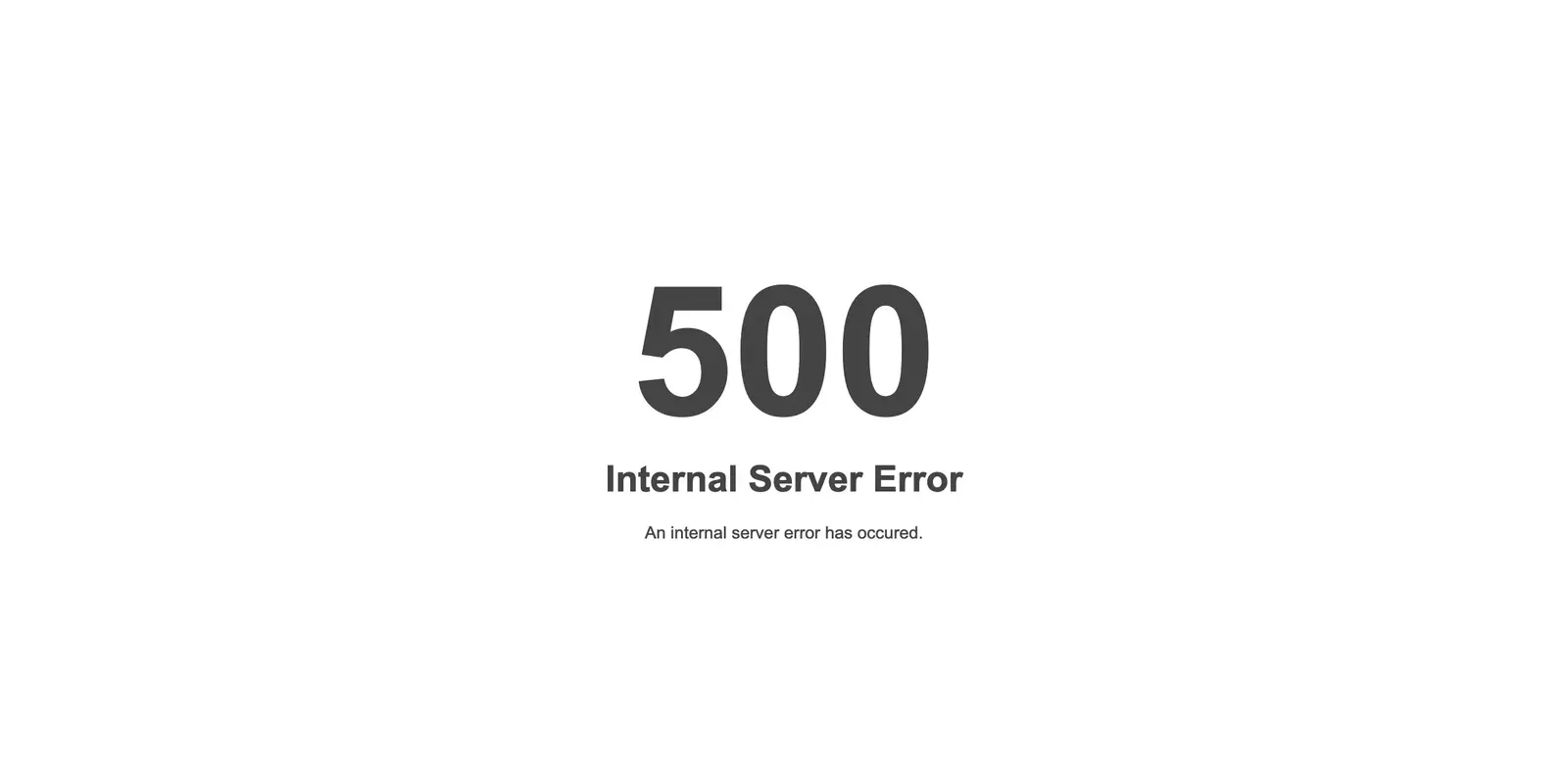
This error has no single appearance. Its design depends on the web server, the browser, the CMS and whether the owner has set up a custom error page. The following variants are the most common.
- The text “500 Internal Server Error”, “HTTP Error 500”, “Server Error 500”, “An internal server error occurred” or “Error 500 Internal Server Error” on a white background, sometimes with the web server name at the bottom of the page.
- The browser message “This page isn’t working” with the note “HTTP ERROR 500”.
- The Apache server text saying that the server encountered an internal error or misconfiguration.
- A completely blank white page with no text at all.
- The WordPress message “There has been a critical error on this website”; database connection problems may come with a separate message, and the HTTP code depends on the situation.
- The website’s own page with an apology and a suggestion to come back later.
A blank page does not necessarily mean HTTP 500: it can be caused by script errors, an empty response or incorrect rendering in the browser. To check the actual code, open the developer tools and look at the Network tab, or check the response headers with another HTTP client.
The error may affect the whole website or individual functions. If no page opens at all, the shared dependencies are checked: configuration, PHP, the database, the file system and server resources. If the failure occurs only in the admin panel, the cart or a form, the components involved in those particular requests should be examined first. This is a hint for diagnostics, not conclusive proof.
On a server with several websites it is useful to compare how they work. Simultaneous failures may point to a shared infrastructure problem, yet several websites may depend on the same plugin, configuration or database. If the error occurs on only one website, server-side causes cannot be ruled out completely either.
If the website uses a CDN or a reverse proxy, such as Cloudflare, the 500 response may be generated either by the origin server or by the intermediate component. The administrator needs to compare the HTTP responses and logs at both levels. The origin server is checked directly only with permission and with the correct Host header, HTTPS and access protection rules taken into account.
What a visitor can do about a 500 error
A visitor usually cannot fix a server error on their own. You can refresh the page once after a few minutes or check the service’s official notice about outages. Clearing the browser cache, switching browsers or restarting the router mostly has no effect on HTTP 500, although it sometimes helps to rule out a local display problem.
If the 500 message appears in an app or an online service, it may relate to its server API or another remote service. Reinstalling the program without further signs of a local fault is usually pointless. It is worth checking the service’s official channels and trying the request again later.
If the error does not go away, it is worth reporting it to the owner of the resource, giving the page address, the time and the action after which the message appeared. This information shortens the search for the cause considerably, because the administrator knows straight away which time period to review in the logs.
Payment and checkout pages call for caution. If the error appeared after a button was pressed, the operation may have been completed partially or in full. Before trying again, it is better to check the email, the account and the bank statement so as not to create a duplicate order or payment.
Finding the cause of a 500 error in the logs
A site owner should start with facts and not with random changes to the settings. The error logs of the web server, PHP, the application and other components can show the cause if the corresponding logging is active. If there are no entries, the logging configuration and the logs of adjacent services are checked.
- Record the page address and the exact time the error appeared.
- Open the web server log. Typical paths: for Apache, /var/log/apache2/error.log or /var/log/httpd/error_log; for Nginx, /var/log/nginx/error.log. They may differ in a particular configuration.
- Find the entries for the relevant time and reproduce the error once more while watching the log with the tail -f command.
- If there is not enough information, check the PHP log_errors and error_log parameters and the application’s own log. Do not change the configuration without understanding where the entries will be stored and who will have access to them.
- In WordPress, for temporary diagnostics, set WP_DEBUG and WP_DEBUG_LOG to true and WP_DEBUG_DISPLAY to false in the wp-config.php file. With the default setup the entries go to wp-content/debug.log, provided the process has write permissions.
The exact paths and access to the logs depend on the hosting, the operating system and the configuration. On shared hosting the logs may be available in the control panel, and some system logs can only be obtained through technical support.
The access log makes it possible to determine which requests returned 500 and when the failure began, provided the relevant data is recorded. Compare the time of the first error with updates, code deployments, configuration changes and the state of the services. A match in time helps to form a hypothesis but does not yet prove the cause.
On a live website PHP messages should not be displayed to visitors: they can reveal internal paths, the code structure and other internal information. Turn off detailed debugging after diagnostics. Log files need to be protected from outside access, and their size and retention period controlled; before deleting them, save the entries needed for analysis in a secure place.
Causes of the 500 error and how to fix them
A 500 error can occur at different stages of request processing. For PHP websites and common CMS platforms, typical causes include invalid web server rules, fatal code errors, resource limits, access permissions and incompatible extensions. Without the logs, however, it is impossible to tell in advance which of them was triggered in a particular case.
Before making any edits, it is worth copying the file being changed so that the previous state can be restored. It is better to change one thing at a time and check the website after each step, otherwise it will be unclear which action actually helped.
Other causes include unavailable dependencies, database query errors, corrupted files, failed read and write operations and resource exhaustion. Some failures produce other HTTP codes or special messages, so the problem should be confirmed by the actual response and the logs.
Errors in the .htaccess file
The .htaccess file makes it possible to set supported Apache rules for individual directories, if the server allows them to be used. A syntax error, a directive that is not permitted or a reference to a missing module can cause HTTP 500. This happens after manual changes, plugin installation or moving a website between different Apache configurations.
First check the Apache log and create a backup copy of .htaccess. With access and an understanding of what the rules do, the file can be renamed briefly as a test, but this can break routing, access rules and directory protection. If the error disappears, restore the necessary rules step by step. In WordPress the basic permalink rules can be restored through the Permalinks settings while keeping the custom directives you need.
A separate cause of HTTP 500 is an internal rewrite loop, when Apache or Nginx keeps processing the same address until the limit is reached. This should be distinguished from an external loop of HTTP 301/302 redirects, for which the browser usually shows a too many redirects error. Check RewriteRule, rewrite, try_files and the conditions under which they apply.
It is important that Apache and Nginx are configured differently. Nginx does not process .htaccess. The php_value and php_flag directives cannot be used to configure PHP-FPM through .htaccess: the corresponding parameters are defined by the PHP-FPM configuration or other supported mechanisms.
PHP errors and the memory limit
A fatal PHP error can interrupt request processing and cause HTTP 500 if the application or server does not generate another response. Common causes are a syntax error, a call to a missing function, incompatible code or an extension that is required but not installed. After changing the PHP version, check the compatibility of the CMS core, themes and plugins.
Another cause is exceeding the memory_limit. This can happen when importing a large product catalogue or generating reports. Exceeding max_execution_time can also end a PHP script with an error, but the actual result depends on how the script is run and how exceptions are handled.
Raising the limits does not replace diagnostics. First find out whether there is a memory leak, an infinite loop or an inefficient query. If the application genuinely needs additional resources, change the parameters in line with the available memory, the hosting limits and the number of simultaneous processes.
The syntax of a PHP file can be checked with the php -l command, taking into account the interpreter version the website uses. If the failure is related to a new PHP version, temporarily returning to a compatible, supported version sometimes helps to restore operation. Do not go back to an outdated and insecure version without assessing the risks; fixes should be tested in a staging environment.
File and folder permissions
The web server and PHP need permission to read files, access directories and write to certain service folders. 644 for regular files and 755 for directories are often used as a reference, but the correct values depend on the owner, the group, the way processes are run, ACLs and the requirements of the particular platform. Access errors do not always return exactly 500: 403 and other responses are also possible.
Excessive permissions are dangerous. Do not use 777 to get rid of the error: it opens unnecessary write access and may conflict with the server’s security policies. Also check the owner and group of the files, especially after moving the website or unpacking archives manually.
Fix permissions only after identifying the file or directory where the refusal occurs, and set the necessary permissions following the principle of least privilege. Do not apply the same permissions recursively to all files and folders: configuration files, writable directories, keys and service data may require different settings.
The folders the website writes data to should be checked separately: uploads, cache, sessions, temporary files. If writing to them is impossible, the error occurs not on all pages but only during certain actions, such as uploading an image or saving settings. This selectivity is often confusing, although the log entry points directly to the access refusal.
Plugin and theme conflicts
Extension modules are written by different developers, and nobody guarantees compatibility between them. After one plugin is updated, another may call a function that no longer exists, or the theme may address a changed interface. The result is a fatal PHP error and code 500, sometimes only on the pages where the conflicting module is involved.
If the admin panel is available, first check the failure message and temporarily deactivate the suspicious plugins. If login is unavailable, in WordPress the directory of a particular plugin can be renamed over SFTP or SSH after its name and contents have been saved. Deactivating all plugins in bulk can stop important functions such as payment, caching, integrations and security, so it is done only after assessing the risks.
WordPress has a Recovery Mode. In certain cases of fatal errors the system sends the administrator an email with a login link and isolates the problematic extension in that session. The notification may not arrive, and recovery mode is not triggered by every error. After diagnostics the module is fixed, updated, replaced or rolled back to a compatible version.
For other CMS platforms the procedure depends on their architecture. Check the modules and theme through the mechanisms the system supports, and test changes with their effect on content and data in mind. Clear only those caches that may really contain incompatible data, and allow in advance for the time it takes to rebuild them.
Nginx and Apache configuration errors
The cause may lie in the web server configuration even when the website code has not changed. Invalid directives, unavailable paths or Apache configuration errors often come to light during a syntax check or a restart. At the same time, a serious error in the main configuration file may prevent Apache from starting at all, instead of generating HTTP 500 for a request.
In Nginx, HTTP 500 can occur because of an internal redirection cycle in rewrite or try_files and other processing errors. Problems with access to temporary files and responses from a FastCGI application are also worth investigating, but they do not guarantee exactly code 500: the response depends on the particular failure and the Nginx settings.
The check starts with the logs. Before changes are applied, the configuration syntax is checked with the nginx -t or apachectl configtest commands. This helps to catch configuration errors but does not guarantee that the whole routing logic is correct. Keep a working version of the settings and change only one parameter at a time.
Typical log entries for a 500 error
Log messages seem confusing only at first glance. Most of them repeat from website to website, and a key phrase is enough to understand straight away which direction to take.
| Log entry | What it means | What to check |
|---|---|---|
| Invalid command | .htaccess contains a directive the server does not understand | File syntax, presence of the required Apache module |
| Request exceeded the limit of 10 internal redirects | The redirect rules have looped | RewriteRule rules in .htaccess |
| rewrite or internal redirection cycle | The same loop, but in the Nginx configuration | The rewrite and try_files directives in the site settings |
| PHP Parse error: syntax error | There is a syntax error in the code | The file and line given in the entry |
| PHP Fatal error: Allowed memory size exhausted | The script exceeded the memory limit | The memory_limit parameter, the module that caused the spike |
| PHP Fatal error: Call to undefined function | A function that does not exist was called | PHP version, installed extensions, plugin compatibility |
| Permission denied | The server lacks permissions for a file or folder | Owner and access permissions |
| No space left on device | The disk has run out of space | Free space, the size of logs, cache and backups |
| End of script output before headers | The script crashed without generating a response | PHP log, time and memory limits |
PHP entries usually help to find the problematic file and line, but not every error contains this information or points directly to the root cause. The file path makes it possible to determine whether the failure concerns an extension, a theme or the CMS code, after which the call chain and preceding events can be checked.
If there is no entry in the web server log at all, it is worth checking whether you are looking at the file for the right website and whether PHP error logging is enabled. On servers with several websites, logs are often kept separately for each domain, and the general file remains empty in that case.
A single request can create several related messages. Correlate them by time, request identifier and execution context. The earliest entry is not always the root cause: sometimes a more significant exception appears in a separate log or during a preceding request.
500 error on CMS websites

CMS platforms have their own diagnostic mechanisms, but there is no universal procedure for all systems. First record the response code and check the logs, then match the error with recent changes. Only after that deactivate extensions or edit server parameters. Create a verified backup before any risky actions.
Check the CMS configuration: wp-config.php in WordPress, config.php in OpenCart, configuration.php in Joomla. After a migration, invalid connection parameters, paths and settings may remain there. At the same time, a database error may have its own message and different HTTP codes, not necessarily 500.
If the logs point to an extension or a theme, check that particular component, its compatibility and recent changes. Renaming a directory through file access can help in some CMS platforms, but the way to deactivate an extension depends on the system and is not always limited to changing the folder name. After the fix, clear only the relevant cache.
Next, resources, dependencies and the integrity of system files are checked. CMS memory parameters do not always work as hard limits and cannot override all server restrictions. After an incomplete update, restore files only by following the official procedure for that particular CMS and its version, having saved the website and the database beforehand.
500 error after a website update or migration
HTTP 500 often appears after changes: an update of the CMS, plugins or PHP, a code deployment or a website migration. It is worth drawing up a timeline of such events, while also taking independent factors into account: lack of space, failure of a dependent service, a change in load or resource exhaustion.
After a migration, check the PHP version, extensions, access permissions, file paths, database parameters and web server rules. Even before you transfer a website to another hosting provider, it is important to compare the environments and test their compatibility on a copy of the website.
Invalid database credentials, a stopped service or too many connections can disrupt the website. WordPress, for example, often shows a separate message, “Error establishing a database connection”. The HTTP code in this case has to be checked in fact: it is not always 500. Diagnostics involve checking the CMS configuration, database availability, permissions and logs.
After an update it is worth checking whether outdated data remains in the page cache, the object cache or the server-side cache. Clearing the cache is not always safe as a first step: it can increase the load, slow the website down temporarily or remove important temporary data. First determine the caching level and clear only the necessary entries.
If the failure began after an update, consider a controlled return to the previous state. Before that, assess whether the old code and the current database schema are compatible, and whether new orders and other changes will be preserved. A rollback does not always remove the cause and may require a separate recovery plan.
If the website is deployed through Git, the previous version of the code is available for comparison or a controlled return. However, Git by itself does not restore the database, uploaded files or the state of external services. Such components need a separate plan and an up-to-date backup.
What to do if the 500 error persists
If the cause remains unclear, first save the logs and check whether a usable backup exists. Restoring from a copy should follow an agreed plan, with an assessment of the possible loss of changes made after the date it was created. Even if the website is restored, the cause of the failure has to be found so that it is not reproduced during the next update.
The second option is to contact the hosting support service or a developer. Prepare the URL, the exact time with the time zone, how often the error occurs, recent changes, the actual HTTP code and the steps already taken. Add relevant log fragments after removing passwords, tokens and personal data. The scope of assistance depends on the service and on how responsibility is divided between the hosting provider and the application owner.
Do not postpone the request if the website brings in enquiries or sales. This applies to cases where there is no recent backup, payment or the cart does not work, the error appeared after a move, or a CRM, warehouse or payment systems are connected to the website. Attempts to fix things on your own in such conditions can prolong the downtime, and every extra change makes it harder to find the original cause.
Impact of the 500 error on SEO
For a search engine crawler, code 500 means a failed attempt to retrieve the resource. An isolated failure will not necessarily have noticeable consequences, but regular 5xx responses can make Google temporarily reduce its crawl rate. The effect depends on the number of affected URLs and the duration of the errors.
If pages return 5xx for a long time, Google may eventually remove them from the index. Once 2xx responses are restored, crawling gradually resumes, but the speed of re-indexing and the return of visibility are not guaranteed. It is especially important to fix template errors that affect a large number of URLs.
The tricky part of code 500 is that it can affect pages the owner rarely visits: old articles, filter pages, individual product pages. The page indexing report in Google Search Console, where server errors are shown as a separate reason, helps to detect such cases, as does a regular review of the access log for responses with 5xx codes.
After the error is fixed, check the critical addresses with the URL Inspection tool in Search Console. If necessary, re-indexing of the available pages can be requested. This does not guarantee immediate crawling, indexing or recovery of rankings.
Preventing the 500 error
Controlled updates, backups, resource monitoring and website health checks help to reduce the risk of a 500 error. Failures cannot be ruled out completely, but well-established procedures make them easier to detect and recover from.
- Staging copy. Testing changes in an environment as close to production as possible, taking into account the PHP version, modules and settings.
- Backup before changes. Creating copies of files and databases, with periodic checks that they are fit for recovery.
- Controlled updates. Rolling out changes in stages, recording versions and keeping the option to return to a compatible state.
- Logging. Recording important errors and system events, with log protection and control over size and retention; detailed debugging is enabled temporarily.
- Version compatibility. Before moving to a new PHP version, support from the CMS, the theme and plugins is checked.
- Trusted extensions. Plugins and themes come from reliable sources and are regularly updated by the developer.
- Restricted access. Only those who need it for their work have the right to change code and settings.
- Response monitoring. Regular checks of the codes and content of key pages, and alerts about failures.
The most practical approach is to combine testing of changes with backups and checks that recovery is possible. Hostpark offers backup services using Veeam technologies and the infrastructure of the Atman data centre. Compatibility with a particular server or application, the protection method and the retention parameters are determined by the chosen solution and the agreed terms.
These measures are complemented by website and server availability monitoring. External checks of important URLs and alerts about 5xx responses help to notice a failure before customers report it, provided a suitable monitoring service is set up.
Conclusion
A 500 Internal Server Error is a general HTTP response about an unexpected condition that prevented the request from being fulfilled. The code by itself does not name the cause. Check the logs of the web server, the application and dependent services, the configuration, access permissions, resources and recent changes.
To fix a 500 error, it is important not to change everything at random: first record the symptoms and the cause, then test the fix and verify the result. Backups, a staging environment, secure logging and monitoring reduce the risk of prolonged downtime, although they cannot guarantee uninterrupted operation of the website.