



When a website suddenly stops opening, it does not always mean a serious server failure. The cause may be found at different levels: the user’s local internet connection, the domain, DNS, SSL certificate, hosting settings, server resources, database, CMS, or a third-party service. Therefore, the administrator’s first task is not to immediately start changing the configuration, but to determine exactly where the problem occurs.
It is also important to pay attention to the nature of the failure. If the website does not open on one computer but works via mobile internet, the cause may be local or related to routing or filtering on a particular network. If the resource is unavailable from different networks and devices, the domain, DNS, network path, server, and application need to be checked. When the browser displays a specific HTTP code, such as 500, 502, or 503, the search for the cause can already be narrowed down to the server side or application.
There is no definitive answer to why a website is not opening without performing diagnostics. The same external symptom may result from an expired domain registration, an incorrect DNS address, server overload, a PHP error, or even a DDoS attack. Below, we will examine the main causes of website unavailability, the sequence for checking them, and ways to restore the resource’s operation.
Why a Website Is Not Opening: Main Causes
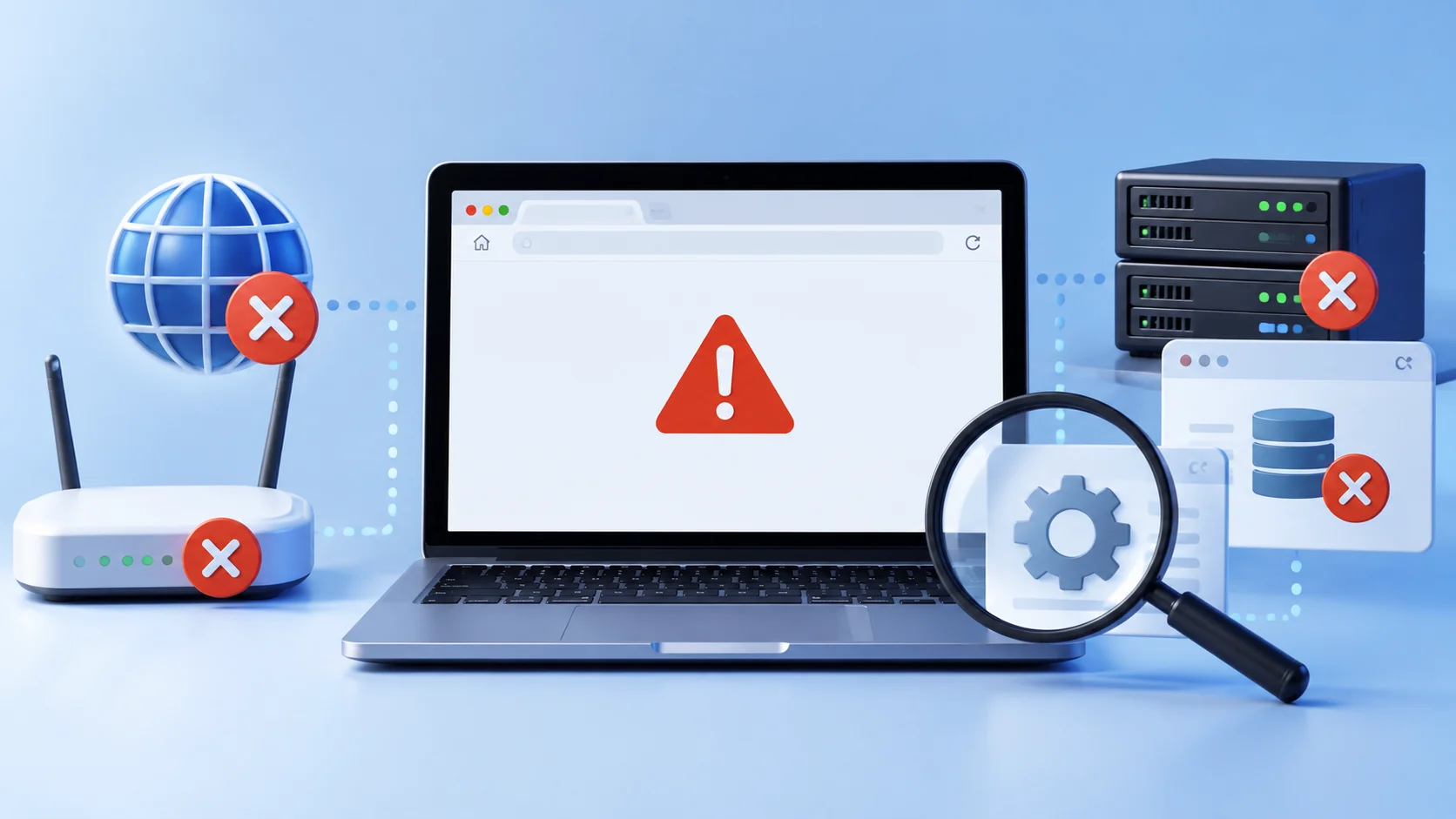
Website unavailability can generally be divided into several levels. The first involves the domain and DNS – they determine whether the browser can identify which server it needs to contact. Next come the network and hosting infrastructure. If the server is accessible but cannot process requests correctly, the cause should be sought in the web server, CMS, PHP, database, configuration, or system resources.
SSL/TLS should be checked separately, as a certificate error can prevent the HTTPS version of a website from opening normally. Another group of causes is related to security: malware infection, account compromise, file blocking, or a DDoS attack can make a resource completely unavailable or cause intermittent failures.
The main reasons why a website may not work can be briefly summarised as follows:
| Possible Cause | How the Problem Appears | What to Check First |
| Domain problems | The domain stops directing visitors to the website, or the browser reports that the address cannot be found | Domain registration status and expiration date, NS servers, and possible restrictions imposed by the registrar |
| DNS errors | The website does not open for all or some users, especially after migration to another server | A, AAAA, CNAME, and NS records, the server’s IP address, and the current DNS zone configuration |
| Server or hosting failure | The website is completely unavailable, connections are interrupted, or the server does not respond | Server status, web server operation, PHP and database services, and notifications from the hosting provider |
| SSL certificate problem | The browser displays a warning about an unsafe or invalid HTTPS connection | Certificate expiration date, domain name matching, certificate chain, and HTTPS configuration |
| Resource limits exceeded | The website works slowly, periodically becomes unavailable, or returns 500, 502, 503, or 504 errors | CPU, RAM, disk space, PHP processes, database connections, and configured limits |
| CMS or code error | Individual pages or the entire website return server errors, a blank screen, or CMS error messages | PHP and web server logs, database status, plugins, theme, access permissions, and configuration |
| Failed update | The website stops working immediately after updating the CMS, plugin, theme, PHP, or server software | Recent changes, version compatibility, server logs, and the possibility of a safe rollback |
| DDoS, hacking, or malware | There is a sudden increase in load, instability, unexpected redirects, or content changes | Traffic, server logs, modified files, user accounts, and security systems |
Therefore, when a website is not working, it is more useful to check each level systematically rather than look for one universal cause. This helps identify the failure faster and avoids wasting time on changes unrelated to the problem.
Domain Problems
A domain name is the address visitors use to find a web resource. If a problem occurs with the domain, the server may continue running and the website files may remain in place, but the browser will not be able to reach the required infrastructure properly. If you do not know what to do when a website is not opening, first check your internet connection, DNS, hosting operation, and any technical errors on the server.
One obvious cause is the expiration of the paid registration period. Depending on the domain zone, registrar, and domain status, the consequences may not appear immediately. However, after the delegation status changes, the website may stop opening. Therefore, owners should monitor renewal dates and keep their contact information up to date in their registrar accounts.
Registration details can be checked using the WHOIS/RDAP domain lookup service. Depending on the domain zone, the response may include the domain status, registrar, creation and expiration dates, NS servers, and other technical information. Some owner contact details may be hidden in accordance with registry rules or privacy policies.
Website unavailability may also result from incorrectly changing NS servers, domain suspension by the registrar or registry, an error during transfer to another registrar, or incorrect configuration after changing service providers. If the website stops opening immediately after domain-related operations, the history of recent changes should be among the first things checked.
The operating principles of domain names and their relationship with DNS are explained in greater detail in the article about domain names and how they work.
Errors in DNS Settings
If you cannot connect to a website, check your internet connection, DNS settings, and server availability. DNS helps determine the IP address associated with a domain name or retrieve other necessary records. If a required DNS record is missing or contains an incorrect value, users may receive an address resolution error even though the web server itself remains fully operational.
DNS problems occur particularly often after migrating a website to another server. For example, the website may already have been copied to the new infrastructure, but the domain’s A record still points to the old IP address. Another common situation is when NS servers have been changed, but the required DNS zone has not yet been created on the new service or does not contain all the necessary records.
During diagnostics, A and AAAA records should be checked if IPv6 is used, along with CNAME records for the relevant subdomains, NS servers, and other records involved in the specific configuration. It is also important to ensure that the www version and the root domain are directed according to the intended architecture.
After DNS changes, different users may receive different results for some time. DNS responses are cached by recursive resolvers and local systems, and the caching duration depends, among other things, on the TTL. Therefore, it should not automatically be assumed that all DNS changes propagate within the same number of hours. A better approach is to check the actual records through several independent DNS resolvers and compare them with the current configuration.
If some users already reach the new server while others still reach the old one, caching may be the cause. However, if all resolvers consistently return an incorrect address, the record or delegation itself needs to be corrected.
Hosting or Server Failures
Even a correctly configured domain will not help if the server hosting the resource does not respond. Possible causes include hardware failure, network outages, node reboots, maintenance, operating system errors, web server failures, or incidents at the data centre.
It is important to distinguish between complete server unavailability and a problem affecting an individual website. The absence of a ping response does not by itself prove that the server has failed, as ICMP traffic may be blocked. If several resources are hosted on the same server and all of them stop responding simultaneously, the infrastructure or core system services should be investigated first. If only one website is not working while the others open normally, the cause is more likely to lie in its configuration, CMS, database, SSL, or specific virtual host settings.
For servers with a control panel, check the status of web server services, PHP, the database, and system logs. If SSH access is available, the administrator can also assess network availability, resource usage, and process status. Without administrative access, contact the hosting provider’s technical support and provide the exact time the problem appeared, the domain, the error message, and the results of the checks already performed.
To avoid learning about an outage only from user complaints, it is advisable to use website and server availability monitoring. It helps record periods of unavailability, HTTP statuses, response times, and resource load, making it easier to determine exactly when performance started to deteriorate.
SSL Certificate Expiration
An HTTPS connection involves verifying the website’s certificate. If the certificate has expired, was issued for another domain, has an incorrectly configured trust chain, or was issued by a certificate authority the browser does not trust, users may see an unsafe connection warning instead of the normal page.
In this situation, the server may be accessible, but to an ordinary visitor it will appear as though the website is not opening. Under certain browser security policies, HSTS, or corporate settings, it may be impossible to proceed to the page at all.
The certificate can be checked directly in the browser or using specialised SSL/TLS tools. Pay attention to the expiration date, the domain names covered by the certificate, the correctness of the certificate chain, and web server settings.
If the certificate has expired, it needs to be reissued or renewed according to the installation method. For automated certificates, it is also important to determine why automatic renewal failed. The cause may involve domain accessibility, DNS, file permissions, web server configuration, or the automation mechanism itself.
Certificate features and methods for checking their validity are described in more detail in the article about SSL certificates and HTTPS.
Exceeding Server Resource Limits
A website may stop responding even without a technical failure if the application consumes more resources than the server or hosting plan provides. Most often, this concerns CPU, RAM, disk space, the number of PHP processes, database connections, or other configured limits.
For example, a sudden increase in traffic can increase the load on the processor and database. A resource-intensive plugin may create a large number of simultaneous PHP processes. Insufficient RAM can cause the system to terminate processes. A full disk may disrupt log writing, caching, database operations, sessions, and other components.
In such cases, the problem does not always appear as a complete outage. The website may open intermittently, run slowly, display 500, 502, 503, or 504 errors, and temporarily recover after the load decreases.
Therefore, it is important to analyse not only the current resource status but also performance graphs for the period when the failure occurred. If the load has already decreased, an immediate CPU check may show nothing unusual. Monitoring makes it possible to identify spikes and compare them with the time of unavailability.
Further actions depend on the cause. Sometimes optimising code, SQL operations, caching, or background tasks is sufficient. In other situations, server resources need to be scaled or the architecture changed. Simply upgrading the hosting plan without analysing the problem does not always solve it, especially if resources are being consumed due to a software error.
Errors in Code or CMS
If the domain, DNS, SSL, and server are working but a particular website does not load, the software components need to be checked. For a CMS, possible causes include PHP errors, database connection problems, faulty plugins, module conflicts, a damaged theme, incorrect file permissions, or configuration errors.
One typical situation is when the server responds but returns a 500 Internal Server Error. This status does not identify the specific cause. It only indicates that the server encountered a condition that prevented it from processing the request normally. Details should be sought in the logs.
For PHP websites, it is important to analyse the PHP error log, web server logs, and system logs. A CMS may also have its own logging mechanisms and debug mode. However, displaying detailed internal error messages directly to visitors on a live website is undesirable because they may contain technical information about the system’s structure.
If the website stops responding after code changes, the time of the failure should be compared with the deployment history. Often, the fastest way to isolate the problem is to determine exactly what changed before the error appeared: the PHP version, a configuration file, plugin, theme, database, or server software.
For websites with high availability requirements, it is important to have a testing environment where updates can be checked before being deployed to production. This does not eliminate all risks, but it significantly reduces the likelihood that a routine update will make the main resource unavailable.
Problems After a Website Update
If a website does not open immediately after updating the CMS, theme, plugin, PHP, or another server component, the latest changes should be considered among the main possible causes. Even an official update may be incompatible with other components of a particular project.
For example, a new plugin version may require a different PHP version, a theme may use a function that changed after a CMS update, and a server module may behave differently after a configuration change. As a result, users may see a blank screen, a 500 error, or another error message.
The last successfully working version should be identified, logs reviewed, and the problematic component rolled back if this is part of the recovery procedure. It is important not to replace files randomly, especially if database changes occurred at the same time. Before recovery, ensure that the backup corresponds to the required state and contains all critical data.
If the website is commercial and its database changes continuously, carelessly restoring an old full backup can result in the loss of new orders, enquiries, users, or other information. In such situations, the recovery method should be determined based on the project’s architecture and the type of failure.
Attacks, Malware, or DDoS
Website unavailability may also result from an information security incident. During a malware infection, system files, configuration, access permissions, the database, or redirect rules may be changed. Sometimes the website continues to work partially, but visitors see unauthorised content, redirects, or warnings from browsers and antivirus systems.
DDoS attacks have a different nature. Their purpose is to create such a heavy load on the connection, network infrastructure, or application that legitimate users cannot access the resource normally. Signs may include a sudden unusual increase in traffic, a large number of simultaneous connections, resource overload, significantly increased response times, and widespread availability errors.
Not every increase in load indicates an attack. A similar situation may arise from an advertising campaign, a mention of the resource in a major media outlet, bot errors, or incorrect operation of the application’s own components. To confirm the cause, traffic, logs, connection sources, and the nature of the load need to be analysed.
If there is a reasonable suspicion of a DDoS attack, it is advisable to contact the infrastructure provider or a network security specialist as soon as possible. Protection implemented only at the CMS level may be insufficient if the internet connection or network infrastructure itself is overloaded.
The mechanisms of such attacks and the main approaches to protection are examined in greater detail in the material about DDoS attacks and website protection.
How to Determine Why a Website Is Not Working?
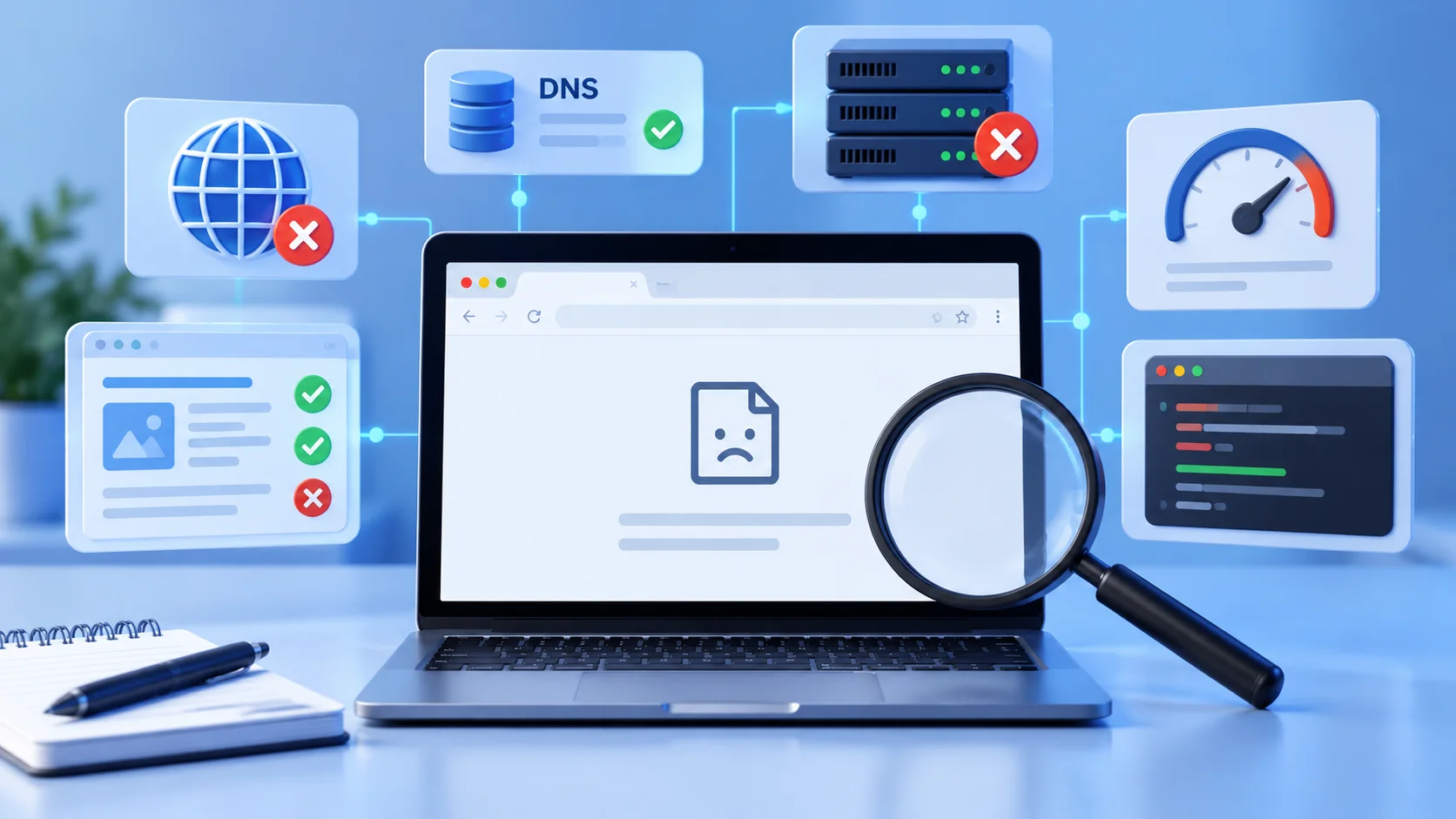
When a website is not opening, the worst approach is to change DNS settings, reinstall the CMS, clean the database, and restart the server all at once. After several such actions, identifying the actual cause becomes more difficult, and new problems may be added to the original failure.
It is better to move from simple external checks to server-side and software diagnostics. A practical sequence may look like this:
- Check the website from another device and network. Open the resource on a smartphone using mobile internet, from another computer, or through an independent network. If the problem occurs only in one environment, check the local DNS cache, browser, VPN, proxy, firewall, and internet connection.
- Check the domain. Use WHOIS/RDAP to make sure the domain is registered, does not have a critical status, and uses the expected NS servers. If the registration has not been renewed or delegation is disrupted, this problem should be resolved first.
- Check DNS. Compare the actual A, AAAA, CNAME, and NS records with the server configuration. If the website was recently migrated, make sure the domain already points to the correct IP address.
- Check server availability. Determine whether the server is reachable over the network and whether web services are running. If all resources on the same server are unavailable simultaneously, the problem may be system-wide.
- Check HTTPS and the certificate. If the browser displays a secure connection error, check the certificate expiration date, domain names, trust chain, and web server configuration.
- Record the HTTP status code. Codes 403, 404, 500, 502, 503, and 504 point to different areas for investigation. An exact status is much more useful than simply saying “the page is not working.”
- Review logs and resources. If the domain and server are accessible, analyse the web server, PHP, CMS, and database logs, as well as CPU, RAM, disk usage, and the status of key services.
- Compare the problem with recent changes. If the CMS, plugin, theme, PHP, DNS, SSL, or server configuration was updated before the failure, examining that specific change often helps identify the source of the error most quickly.
This sequence helps determine where the problem lies – with the user, at the domain and DNS level, on the network, on the server, or within the application itself. If the website works through a mobile network but does not open from an office connection, there is no reason to start by reinstalling the CMS. Conversely, if all users receive a 500 error, the problem is unlikely to be limited to a local browser.
When determining what to do if a website is not opening, the order of checks is often more important than the number of tools used. The more accurately the symptoms, time of occurrence, HTTP code or browser message, and recent changes are recorded, the faster the administrator or support team can identify the cause.
What Do the Main Errors When Opening a Website Mean?
An HTTP status code helps indicate where a problem may have occurred. However, the code does not always provide a ready-made answer. For example, 500 indicates an internal server error, but its cause may be PHP code, web server configuration, access permissions, insufficient memory, or another failure. Therefore, the status should be used as a guide for further diagnostics.
The following statuses are among the most common when website availability problems occur:
- 403 Forbidden. The server received the request but refuses to provide access to the resource. Check file and directory permissions, web server rules, access restrictions, WAF, CMS configuration, and other authorisation or filtering mechanisms.
- 404 Not Found. The server is accessible but cannot find the resource at the specified address. The cause may be a deleted page, an incorrect URL, a broken CMS route, an error in rewrite rules, or an incorrect link structure. If only one page returns 404, this does not mean the entire website is unavailable.
- 500 Internal Server Error. A general server-side error. Review web server, PHP, and application logs, and check configuration, code, modules, access permissions, and the availability of required resources.
- 502 Bad Gateway. A server acting as a gateway or proxy received an invalid response from an upstream server. For example, Nginx may fail to receive a valid response from PHP-FPM or another backend service. Check the status of these components, sockets, ports, and error logs.
- 503 Service Unavailable. The server is temporarily unable to process the request. Possible causes include maintenance, overload, resource limits, or temporary application unavailability. If 503 occurs during traffic peaks, check CPU, RAM, the number of processes, and configured limits.
- 504 Gateway Timeout. A gateway or proxy did not receive a response from an upstream server within the allotted time. This may be related to slow code execution, database problems, a stalled backend service, network issues between components, or excessive load.
HTTP codes are particularly useful when analysed together with the time the error appeared and server logs. For example, a 504 error without logs only indicates that a timeout occurred, while a log entry may identify the specific backend or PHP operation where the delay happened.
If the browser displays a message saying that the domain cannot be found instead of an HTTP code, the problem should be investigated earlier in the connection process – at the DNS or domain level. If the browser reports a certificate error, the HTTPS configuration should be checked first. This can significantly narrow the scope of investigation even before accessing server logs.
How to Restore Website Operation?

The recovery method depends on the level at which the failure was identified. There is no need to try fixing everything at once. If the problem is with the domain, changing PHP settings will not help. If the server is overloaded by a faulty process, reissuing the SSL certificate will not change anything either.
For domain problems, check its status with the registrar and, if necessary, renew the registration or resolve the reason for suspension. If NS servers were changed accidentally, restore the correct delegation and verify that an up-to-date DNS zone exists.
For DNS errors, correct the relevant records and check whether they point to the required infrastructure. DNS caching must then be taken into account. Do not repeatedly change a record simply because one device still displays the old address. First, verify the information through different resolvers.
If the problem is related to SSL, the certificate must be renewed or reissued, and its installation on the server must then be checked. It is particularly important to make sure the web server is using the new certificate rather than an old file remaining in the configuration.
For server errors, logs are the foundation of recovery. Errors 500, 502, or 504 should not be addressed by randomly restarting every service. Restarting may temporarily restore availability but will not eliminate the underlying cause, such as a memory leak, stalled PHP processes, a slow SQL operation, or incorrect configuration.
If the website stopped working after an update, identify the changed component and check compatibility. If a verified backup is available, recovery to a working state may be possible. However, for dynamic resources, it is important to account for data created after the backup was made.
In the event of hacking or malware, simply restoring files may not be enough. The entry point must be eliminated, compromised credentials changed, and the server, CMS, database, and configuration checked. Otherwise, the website may be infected again after recovery.
A properly configured backup system can simplify recovery after software errors, data corruption, or other incidents. However, the mere existence of a backup does not guarantee successful recovery. Backups must be created regularly, their successful completion monitored, and recovery procedures tested periodically.
When Should You Contact Your Hosting Provider?
Not every problem requires provider intervention. A WordPress plugin error or an incorrectly changed DNS address can often be fixed by the website owner. However, there are situations where identifying the cause is difficult or impossible without access to the server or network infrastructure.
Contacting technical support is justified if the server has completely stopped responding, a hardware or network failure has been identified, the control panel is unavailable, resource limits are consistently exceeded, access to system logs unavailable to the user is required, or a backup managed by the provider needs to be restored.
Support may also be necessary if widespread 502, 503, or 504 errors occur and there is no way to independently check backend services, PHP-FPM status, the network, and resources. If a DDoS attack is suspected, the provider may be able to observe traffic and network anomalies at a level inaccessible to the CMS owner.
To help support process a request faster, simply writing “the website is not opening” is not enough. It is useful to provide the domain, approximate time the problem began, whether it can be reproduced from different networks, the HTTP code or message displayed, whether updates, migrations, or DNS changes occurred beforehand, and which checks have already been performed.
If the problem is intermittent, provide the exact time periods when it occurred. This allows the failure to be compared with server logs, CPU, RAM, disk and network graphs, and service status. Without the incident time, identifying a short-lived problem can be much more difficult.
Do not delay contacting support if the failure affects a critical business process and the cause is unknown. Prolonged experimentation on a production server without a backup or an understanding of the configuration can sometimes cause more damage than the original failure.
How to Prevent Repeated Website Downtime?
It is impossible to eliminate technical failures completely, but many incidents can be detected earlier or their recovery time reduced. This requires systematic monitoring of critical components rather than relying on a single protective tool.
First, availability monitoring should be configured. Checks from independent external locations allow notifications to be received before the problem becomes widespread. For servers, it is also necessary to monitor CPU, RAM, disk space, the status of key processes, response times, and other metrics important to the specific project.
Backup frequency should correspond to the nature of the data. One backup schedule may be acceptable for a static corporate website, while an online store receiving continuous orders requires another. It is critically important to store backups so that a failure of the main server does not destroy both production data and the only backup at the same time.
Domain monitoring is equally important. The registrar’s contact email address must remain current, and renewal notifications should not be ignored. For critical domains, it is advisable to check the registration expiration date in advance rather than respond only after the status changes.
Certificates should also be monitored automatically. If an automatic renewal mechanism is used, it is worth checking not only the SSL expiration date but also whether the renewal procedure itself succeeds. Automation is useful only when its failures are also visible to the administrator.
Updates to the CMS, plugins, themes, and server software should follow a predictable procedure. Before major changes, an up-to-date backup is required, and important projects should have a staging environment. After an update, it is necessary to check not only the homepage but also critical functions: authentication, forms, shopping cart, payments, user accounts, and other scenarios on which the resource depends.
Another area is protection against attacks. This includes regular updates, access control, strong passwords, multi-factor authentication where supported, disabling unnecessary services, analysing logs, and using appropriate network protection. For projects where downtime has significant consequences, an action plan for DDoS attacks or compromise should be prepared in advance.
It is also important to document configurations and changes. If the administrator knows when DNS was changed, PHP updated, a new module installed, or the website migrated, identifying the connection between a change and a subsequent incident becomes much easier. Without a history of changes, diagnostics often turn into guesswork.
Preventive measures are not only necessary for large services. Even a small corporate website may generate enquiries, support advertising, or serve as the main communication channel with customers. Therefore, regular monitoring, backups, and control of domain and SSL expiration dates make sense regardless of the project’s scale.
Conclusion
If a website is not opening, the cause may lie at any stage between entering the domain name and executing the application code. Expired domain registration, DNS errors, server failure, an invalid SSL certificate, insufficient resources, CMS problems, failed updates, or cyberattacks can produce a similar result for users – the page does not load.
That is why diagnostics should be carried out systematically. First, check whether the problem can be reproduced from another network, then examine the domain and DNS, server availability, HTTPS, and HTTP status code. After that, proceed to server resources, logs, the database, CMS, and recent changes.
If the website does not open after an update, migration, or configuration change, information about the last action often provides the most valuable clue. If the problem appeared without obvious changes, monitoring, logs, and historical server metrics become particularly important.
When the cause cannot be determined independently, it is not advisable to leave the resource unavailable for a prolonged period or make random configuration changes. The hosting provider’s technical support should receive the domain, the time the failure appeared, the error message or code, and the results of checks already performed. This will help identify the problem faster and select a safe recovery method.
A practical approach for the future is to prepare for possible failures in advance. Availability monitoring, server resource monitoring, up-to-date backups, timely domain and SSL renewal, careful CMS updates, and appropriate protection against attacks make it possible to respond much faster if the website becomes unavailable again.